Motherboard buying advice for the PC building apocalypse — Our benchmarks, and years of testing, show you where to save and when to spend

Since late 2025, thanks to the AI boom, we’ve seen prices skyrocket for RAM, video cards, and now storage, making building or buying a PC today much more expensive than it was. Where you might, in the past, spend more on mid-range or even a premium-class motherboard, now that build budget is probably going to some other piece of high-priced hardware.
So, where can you save money without losing performance? One of those areasw is the motherboard. For the latest-generation Intel and AMD boards, prices range from wallet-emptying $900 to $1,200 for Asus, Gigabyte, and MSI flagships, down to around $90 across the three primary chipsets (Intel Z890/B860/H810 and AMD X870E/B850/B840). There are lesser desktop chipsets from both camps – H810 for Intel and B840 for AMD. And although these motherboards are entry-level and cost less, they’re mainly meant for office use, everyday computing, or budget-oriented PCs. They’re essentially for those who really don’t need a ton of connectivity but still want the benefits of the latest platform, whereas others are more feature-rich and capable.
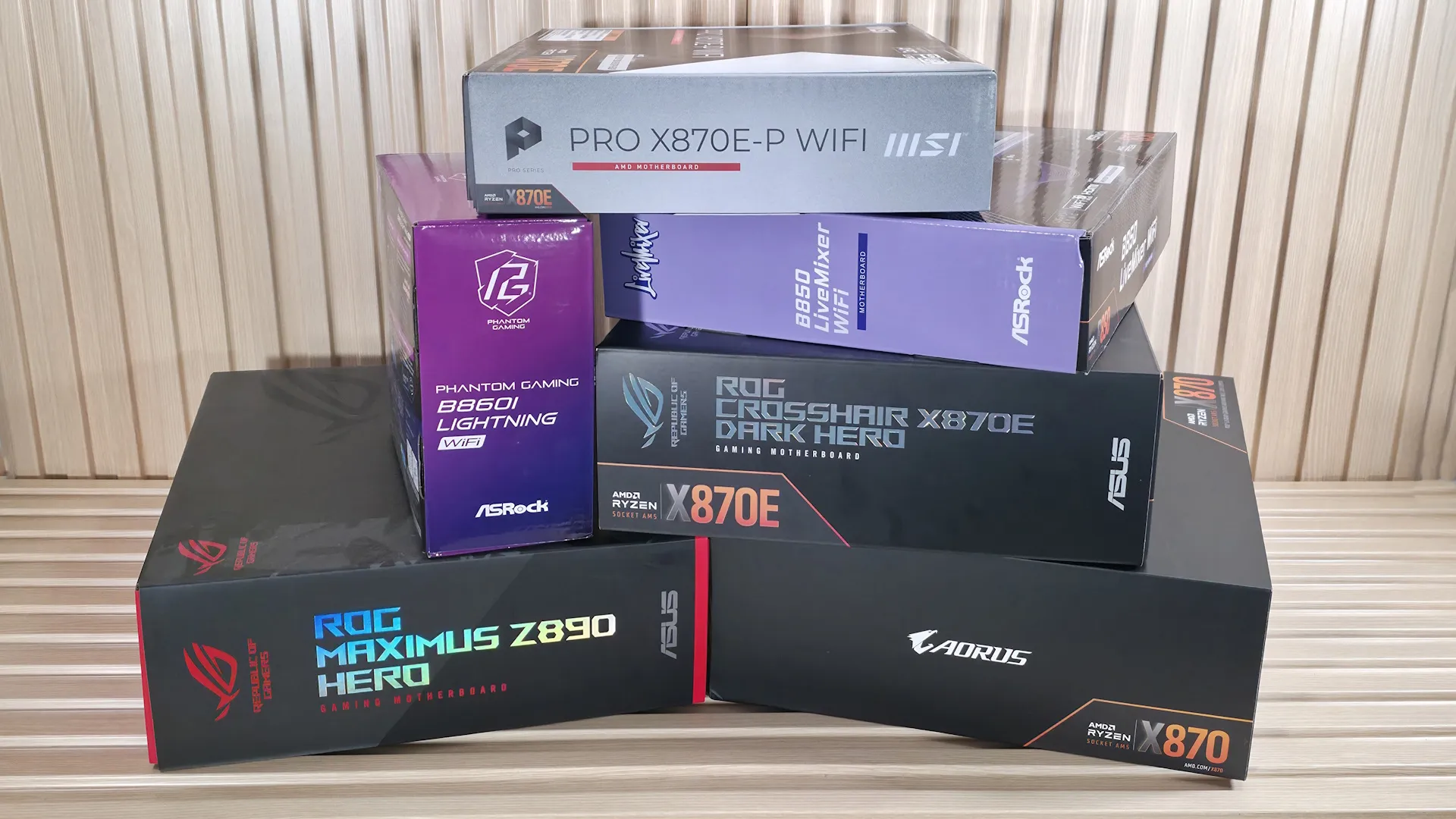
As you can see, there’s a huge price and feature gap between the cheapest and most expensive motherboards. The priciest boards offer the best hardware available for the platform, including 10 GbE, Wi-Fi 7, flagship-class audio, robust power delivery, fast memory support, fast (and more) storage, and more. The cheap boards use slower networking, a lower-quality audio codec, fewer power-delivery phases, and slower memory support, with fewer storage ports. But some boards punch above their weight class, while others may be overpriced relative to their features. So you should understand your wants and needs before making a purchase.
But the real question you should ask yourself when buying a motherboard today is, do you need most of these high-end features, or can you work with a much less expensive options with fewer, or perhaps, slower features? How bad, really, are the cheapest (or at least cheaper) motherboards?
What do you give up, how much can you save, and of course, how cheap is too cheap? The answers will vary depending on your needs, but we’ll dig into all of these questions below. Hopefully, you walk away with more knowledge to make a better-informed decision about saving money where you can, and perhaps spend the savings on RAM, video cards, or storage, where prices have really gone up.
AMD and Intel Chipsets: What you get on paper
Let’s start with what each chipset includes, so you can get a high-level view of what each offers. Note that what you see listed in our table is a minimum. Sometimes boards will add controllers for additional USB or SATA ports, a second Ethernet port, or additional functionality, such as bifurcating the PCIe slots. But here’s a table showing what each of the chipsets offers as a base:
AMD | X870E | X870 | B850 | B840 |
PCIe (Total Lanes / 5.0 breakdown) | 44 / | 36 / | 36 / | 1x16 PCIe 4.0 |
NVMe SSD + other GPP lanes | 1 x4 PCIe 5.0 | 1 x4 PCIe 5.0 | 1 x4 PCIe 5.0 | 1 x4 PCIe 4.0, |
Max # of usable PCIe 5.0 lanes | 24 | 24 | 4 | 0 |
USB4 | Std | Std | Optional | Optional |
USB 3.2 | 2 | 1 | 1 | 0 |
USB 3.2 | 12 | 6 | 6 | 2 |
USB 3.2 | 2 | 1 | 1 | 2 |
Overclocking? | CPU and Memory | CPU and Memory | CPU and Memory | Memory only |
As you can glean from the chart, AMD’s dual PROM21 chips that make up the X870E chipset offer the most native connectivity. The single-PROM21 chip X870 drops some things, and B850 and B840, which also use the same single PROM21 chip, drops more. When you get down to B850, and especially B840, you can lose PCIe 5.0 on the slot (B840 only supports PCIe 4.0), and some M.2 storage, and you generally won’t see USB4 ports either. In short, the further down you go in chipset families, the fewer of everything will be available.

Similar to AMD, Intel’s current-gen flagship chipset, Z890, offers all the bells and whistles (from a single chip, note), whereas B860 and especially H810 offer less of almost everything. Fewer USB ports, PCIe 5.0 slots, and M.2 storage. The further down you go, the less there is to start, and more becomes optional.
Intel | Z890 | B860 | H810 |
PCIe Total Lanes (CPU+PCH) / 5.0 breakdown) | 60 | 36 / | 36 / |
NVMe SSD | 3 x4 PCIe 5.0 | 1 x4 PCIe 5.0 | No PCIe 5.0 |
Max # of usable PCIe 5.0 lanes | 20 | 24 | 4 |
TB4/5, USB4 | 2 | 1 | 1 |
USB 3.2 | 4 | 2 | 0 |
USB 3.2 | 8 | 4 | 2 |
USB 3.2 | 10 | 6 | 4 |
Overclocking? | CPU and Memory | Memory | None |
The key is knowing what you need today and what you’re likely to want in the future, so you can decide whether a cheap motherboard without some high-end features will be sufficient for your needs.

The main features you’re likely to lose by going cheap, and what matters most
One thing that definitely declines when going from flagship to more mainstream boards is the quality of Voltage Regulation Modules (VRMs). Budget-class motherboards list support for all compatible CPUs, but the MOSFETs and Chokes used on extreme-budget boards (in particular, the business-class chipsets from Intel and AMD) may not allow a high-power CPU to maintain its performance, as they can get too hot and throttle, lowering the voltage and clock speed. So one thing you definitely don’t want to do is pair a cheap H810 or B840 motherboard with a flagship-class processor and expect 100% performance all the time. Unless you plan to use an APU or low-power desktop CPU, I’d avoid any board without heatsinks on the VRMs.
Memory support is another specification that looks great on paper but doesn’t matter in the grand scheme of things, at least when talking about performance. The sweet spot for AMD machines today is around 6000-6400 MT/s, with the lowest CL rating. Intel supports higher memory speeds than AMD, thanks to CU DIMMs (with a built in clock driver to support the higher speeds). But the price and benefits of going that high (9000 MT/s or more) are rarely worth the cost of admission unless you're trying to break records. So Intel’s price-to-performance sweetspot, regardless of the higher supported speeds, is still a lot lower than the ceiling for most motherboards, and similar to AMD in the 6400 MT/s range, or even a bit higher.


In short, most motherboards will happily run faster RAM, but the performance difference between a DDR5-6000 CL36 kit and a DDR5-7200 CL34 kit (as we run in our testing) isn’t much. And the price for the same 32GB capacity at the higher speed is almost 25% more ($379.99 versus $474.99 for the same Patriot kit). The performance difference between the two memory speeds is only a couple of percent at best across real-world applications (in part due to the memory fabric dropping from 1:1 to 1:2). Unless you’re trying to break records or need extreme memory bandwidth for your work, you don’t need to worry about memory support on cheap motherboards, as most will run past what the platform is rated for and outside of the lowest Intel chipset (H810), capable of reaching these sweet spot speeds.
PCI-Express excess?
Another consideration is PCIe support. The fastest available on current platforms is PCIe 5.0, and you can use that bandwidth in both the PCIe slot(s) and the M.2 socket(s). PCI scaling, even on the best video card today, the RTX 5090, doesn’t matter much when you’re talking PCIe 5.0 x16/x8, or 4.0 x16. The difference is a margin of error for gaming, but can be more for other activities (like video rendering and game development - according to Puget Sound), with lower bandwidth. Even on the extreme budget side of things, it shouldn’t matter, as there’s at least one full bandwidth PCIe slot. Keep it above PCIe 4.0 x8, and you’d only notice any difference in benchmarks. Just be careful: On some boards, there is lane sharing between the PCIe slots and M.2 sockets, so installing a drive will cut the PCIe slot bandwidth in half; check the specs closely before buying.
Storage speeds and quantity
Storage is another important element. Unless you’re only ever going to install one drive, M.2 socket count, speed, and SATA port count are all important considerations when choosing a motherboard. On the most expensive motherboards, you get up to seven M.2 sockets (using included add-in-cards), with four PCIe 5.0 (128 Gbps) capable. And at the bottom end, it’s PCIe 4.0 x4 (64 Gbps) or half that with PCIe 3.0. That sounds like a big difference, and on paper it is, but you won’t notice a difference between PCIe 5.0 and 4.0-based M.2 storage unless you’re often transferring huge files between the fastest storage devices. And given the current price of SSDs, many more people will likely be living with PCIe 3.0 speeds, which is still generally fine for mainstream computing and gaming.
Rear expansion options


USB count on the rear IO (and front panel) is also a critical are of consideration. Too few, and you don’t have enough ports for your peripherals without adding a hub. Too many, or paying for speed you won’t use, can also be a waste, but more is generally better in this case. Most boards come with at least one Type-C and several Type-A with varying speeds. The higher up the chipset, the more speed and ports you’ll see, but the lower you go, the fewer. Case in point: Many of the really inexpensive motherboards don’t include a front-panel Type-C port of any kind, rendering that useful port on your case useless (at least without spending more money on adapters or an add-in card).
Wired and wireless networking
Networking on the cheapest of boards will still be fast enough for most users. Even if the board comes with a single 1 GbE and integrated Wi-fi 6/6E, that’s still plenty fast for most users. And many don’t have a 6E or above router to take advantage of the increased Wi-Fi speeds/specs. Obviously, as you climb the product stack, you see faster speeds (2.5/5/10 GbE) and the same with Wi-Fi (up to Wi-Fi 7). But most of us are using Gigabit internet and Ethernet, or less in the case of internet, so the only way to take advantage of the extra bandwidth is through a LAN (say, a NAS) with the same speed or faster ports. That said, some boards don’t ship with Wi-Fi at all, which is fine if you’re using Ethernet. Adding even the fastest M.2-based Wi-Fi 7 card is relatively cheap ($33.99) if you end up needing it.


Audio is another item that tends to fall by the wayside for most users. Right now, there are five prevalent codecs on the market. The older, basic Realtek ALC897, the last-generation Realtek ALC1200/1220, and the latest, ALC4080/4082. Even the ALC897 is sufficient for most people, but if you’re a gamer or a discerning listener with a decent set of speakers or cans, you’ll want to see the 1200 or 4000 series codecs in use. Or, if you have a pair of AudioEngine A2+ speakers (see our best PC speakers page) or another set of speakers with a built-in DAC, it’s irrelevant. As you move towards the top of the stack, Boards often include third-party DACs and amplifiers, which further improves things with the right equipment.
Build quality and good looks
Last but not least is build quality and aesthetics. Build quality is one of those things that sounds more important than it usually is. I’m not discounting the importance so much as saying it’s not often we see a spate of failures plague motherboards (though ASRock and Asus’ woes recently with AMD processors could constitute such a situation). More often, it's random, one-off issues. So, the build quality from the factory is generally good (or at least good enough), regardless of board class.
While the properties of motherboard components do differ through the product stack (like layers of the PCB or amount of copper used in the traces), for the most part, it doesn’t matter. More is generally still better, especially for those using high-end processors and planning to overclock (PBO or manual), but it also adds complexity and potential failure points. In other words, any board can be faulty or fail in several ways, regardless of price. So keep your receipts for at least a while after your system is up and running without issues.

Aesthetics is a polarizing subject. If you go cheap, budget-class boards tend to have fewer heatsinks, exposing more of the PCB, and they lack RGB (though you can add lighting through any onboard ARGB/RGB headers); budget boards generally do not look as good as the more expensive offerings. As you step up in price, you’ll see larger heatsinks, RGB lighting, and more ornate designs and features such as LCD screens on a few high-end/flagship models, or even faux-wood accents like on the Gigabyte X870E Aero Wood (pictured above). But if your board is going into a case without a window, or it's a function-over-form machine, looks don’t really matter. Still, the further down the stack you go, the ‘worse’ a motherboard generally looks.
Which Features Matter Most
When you buy a system, the primary objective is to generally maximize performance while minimizing cost. And you can find our expert selections on the best motherboard and best motherboard deals pages. But the most critical features are those that align with the system's use case, although certain essential features remain important regardless of the planned use. One of the things we’ve learned from years of motherboard testing is that there isn’t a significant performance difference between flagship and inexpensive motherboards, so long as cooling doesn’t put a glass ceiling on your processor.
Below, you can see several benchmarks, including games, highlighting the small performance difference between a $189.99 motherboard and a $1,099.99 motherboard. Most results are extremely close together, sometimes falling within the margin of error.


General Advice/Bottom Line
Generally, my advice is not to buy the cheapest board you can, as the savings you may find now can (and often will) cost you in the long term if you need expansion or faster storage. Think about your use case, not just the price tag. A bottom-of-the-barrel board is OK for ultra-budget builds, office environments where performance isn’t a factor, and secondary or temporary systems, perhaps an HTPC or a NAS. In 2026, you can expect to find well-equipped motherboards from both Intel and AMD for $190-$300. In that price bracket, power delivery generally isn’t a concern unless you’re pushing high-end chips and overclocks to extremes; there are typically ample USB ports (though often not the fastest around); and you tend to get generous storage options, fast networking, and a decent appearance.
So when is it worth paying up and when isn’t it? That’s a complicated question that varies by situation. But in general, I would pay the piper if:
- Performance is notably worse (it’s generally not)
- Extra features are actually useful to you
- There are bottlenecks in your use case (think USB, storage, networking, CPU)
Also, consider how much you will have to pay in the future to get features back if you need them.
I would not pay more for a board if:
- It’s for an ultra-budget build or office / HTPC use
- Higher-end features won’t be used
- It’s a secondary/temporary system you aren’t going to use all the time
When choosing a budget motherboard, you want to consider:
- CPU support (current and next gen)
- VRM quality and cooling (particularly when using a high-end processor)
- Do you overclock (you’ll need to select a chipset that supports that)
- Storage and expansion needs (how many SATA ports, M.2, PCIe slots do you need?)
- Network and USB requirements (how fast and how many?)
In the end, most of the cheapest boards aren’t inherently ‘bad’. They’re just stripped down and lack some extra features that higher-end models offer. However, cheap boards can become a problem if you pair them with hardware that's high-end; they’re not really designed to handle it.
If you choose wisely, you can cut costs on the motherboard without hurting performance and use the savings for upgrades that make a bigger difference. The goal isn’t to spend as little as possible (although that can work in specific situations) but to spend wisely and get the most out of your investment, no matter what the cost. If you need some help, we’ve picked out the best motherboards we’ve tested and are keeping an eye out for the best motherboard deals, too.